Chat Panel & Layout
The IDE chat is the primary place to plan, ask, and apply edits. The same agent runs in the CLI; this page focuses on the visual workspace.
Type plain language. Use @ mentions for files and context. Approve tool actions when prompted unless you have enabled auto-approve.
Open the panel
Click the CFactory icon in the activity bar to open the sidebar chat, or pop it into an editor tab for a wider layout.
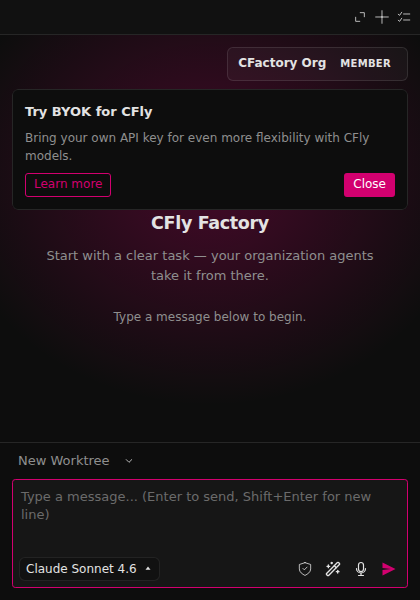
Prefer inline completions while typing? See Autocomplete. Prefer a terminal? Run cfactory for the TUI.
Layout & controls
| Control | What it does |
|---|---|
| Message input | Type a request and press Enter to send |
| Agent / mode switcher | Switch Code, Plan, Debug, Ask, Spec, and custom agents |
| Model picker | Choose a concrete model or Auto tiers |
| Approve / Reject | Gate tool calls and proposed edits |
| Sessions | Start a new chat or resume a previous one |
The editor shares open tabs and the active file automatically. Type @ for file and terminal mentions — details in Context & mentions.
How to talk to CFactory
Good requests:
create utils.py with an add(a, b) functionin @src/components/Button.tsx, make the button bluefind oldValue in @/src/App.js and replace with newValue
What works well:
- Be specific about files and outcomes
- Use
@mentions instead of vague “the button file” - One clear task at a time (or use Specs for multi-session work)
- Include examples of the style you want
Approvals & safety
When the agent wants to run a tool or apply an edit, the panel asks you to approve or reject. You can tune auto-approve in Settings.
Checkpoints let you roll back workspace changes from a task — see Checkpoints.