Enhance Prompt
The Enhance Prompt feature helps you improve a draft before you send it. Click the sparkle control in the chat input to rewrite your request so it is clearer, more specific, and more likely to produce the result you want.
Why use it?
- Clarity — rephrases vague asks into concrete instructions
- Context — can incorporate file mentions and structure you already typed
- Consistency — formats the prompt in a stable way for the model
Before and after
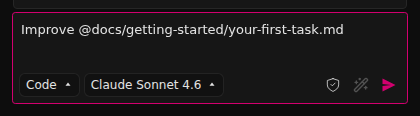
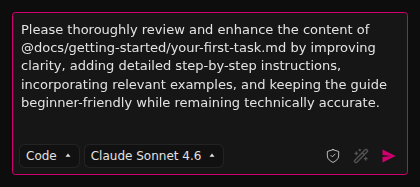
How to use Enhance Prompt
- Type your draft in the chat input.
- Click the sparkle control in the prompt bar (instead of sending immediately).
- Review the rewritten prompt and edit if needed.
- Send it with Enter or the send control.
Choosing a model for enhancement
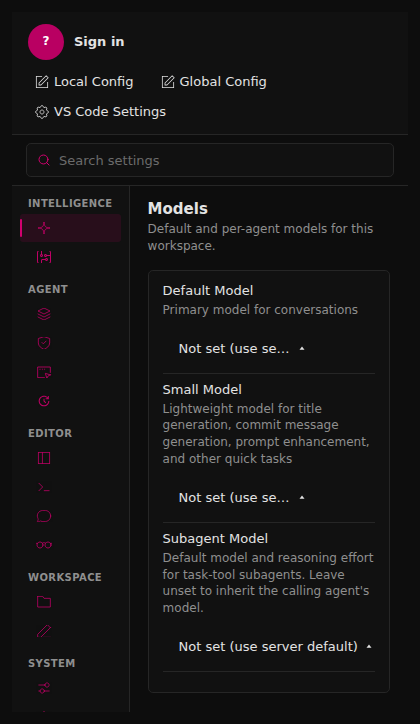
Prompt enhancement uses the workspace Small Model when configured. Open Settings → Models and set Small Model to a fast, inexpensive model for title generation, commit messages, prompt enhancement, and similar quick tasks.
Limitations and best practices
- Always review the enhanced text before sending — it may drift from your intent.
- You can enhance again after editing.
- Clear starting prompts still produce better results than empty or ambiguous drafts.